
A terminal for AI agents, with an MCP server.
Run Claude Code, Codex and other agents in tabs of their own, and let assistants and scripts drive your saved sessions through a local MCP server. They never see a password.
An MCP server for your SSH sessions.
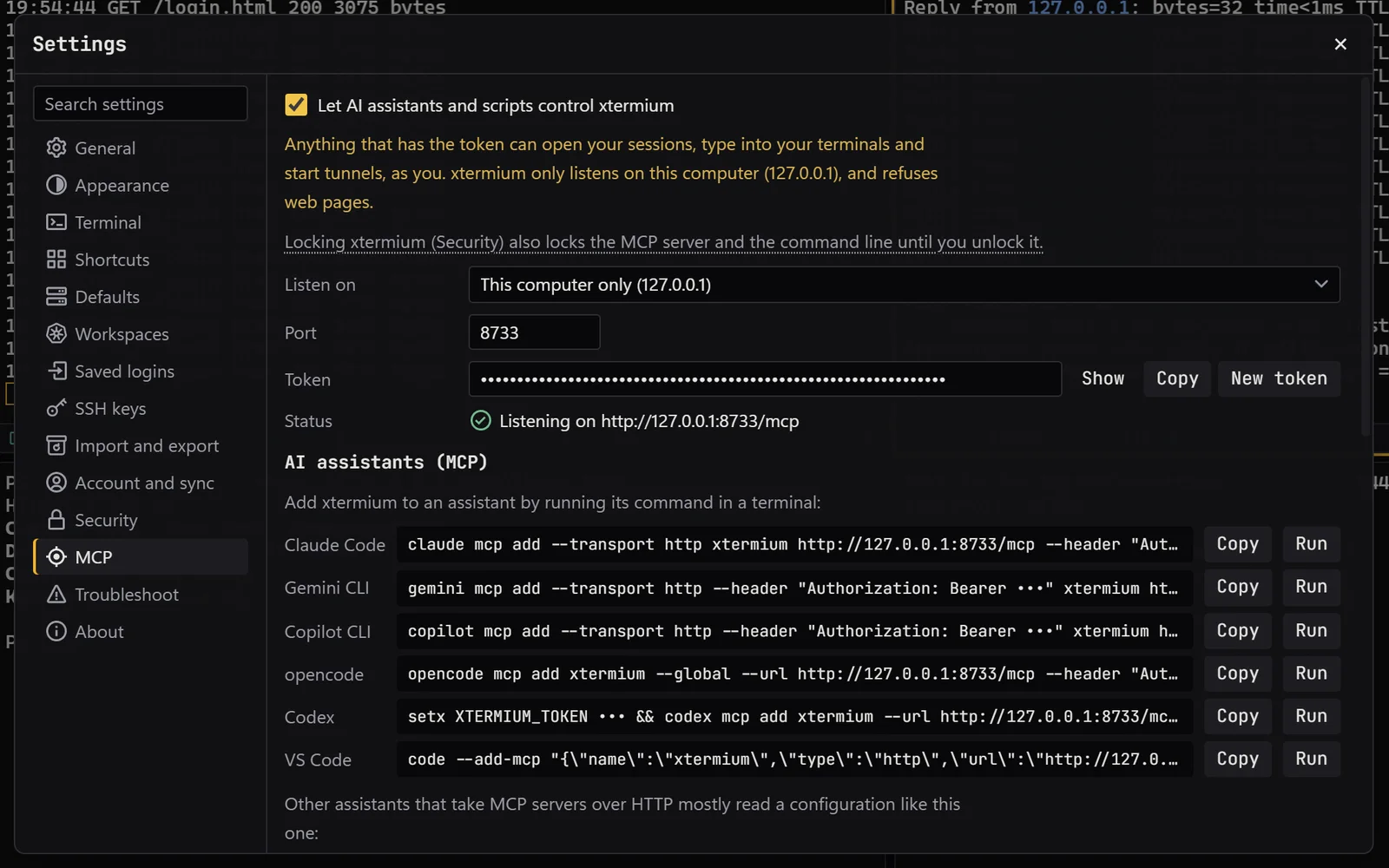
Turn on Settings › MCP: XTermium starts a local MCP server behind a token, at http://127.0.0.1:8721/mcp unless you change the port. The page has a ready command for each assistant, with Copy and Run buttons: Claude Code, Gemini CLI, Copilot CLI, opencode, Codex and VS Code. For Claude Code it reads:
claude mcp add --transport http xtermium http://127.0.0.1:8721/mcp --header "Authorization: Bearer <token>"
Anything that has the token can open your sessions, type into your terminals and start tunnels, as you. Keep it like a password: New token in Settings › MCP replaces it, and the old one stops working. Web pages are always refused.
What an agent can do on your servers.
XTermium gives AI agents the tools you use yourself, through a local MCP server behind a token that you turn on in Settings › MCP. Ask in plain words and the assistant picks the tools: it lists your saved sessions, opens one by name, runs a command and reads what it prints, in a tab you can watch. On RDP and VNC desktops and BMC consoles it takes a screenshot, then clicks, types and presses keys. In a website tab it reads the page, clicks and fills fields. It starts and stops saved SSH tunnels, switches and syncs workspaces, and keeps restore points. XTermium does the signing in, so the agent never sees a password or an agent tab, and while XTermium is locked every tool answers that it is locked. Scripts get the same tools from the xtermium command line.
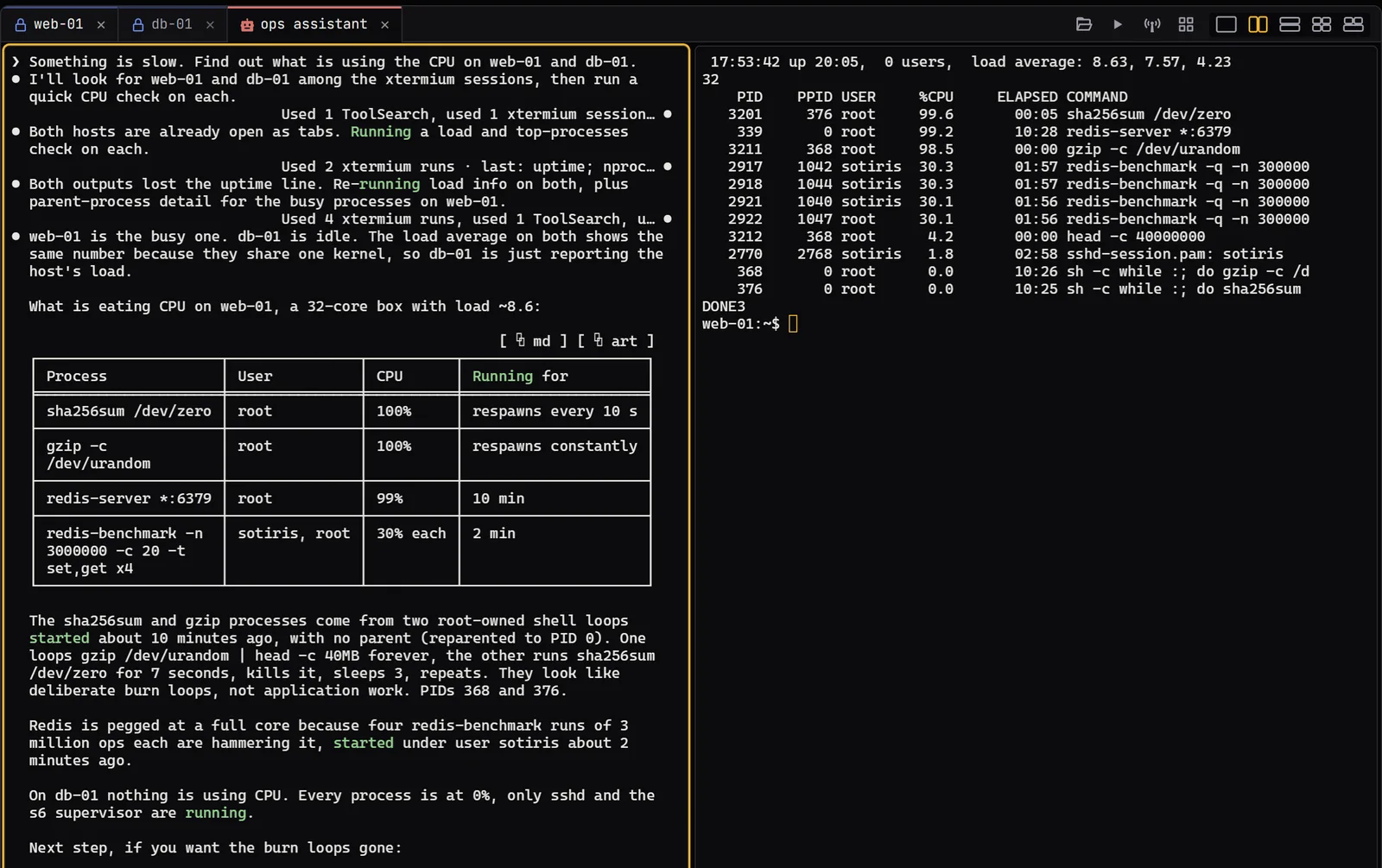
“What is using the CPU on web-01 and db-01?”
- sessions
- open web-01
- run
- read
agentOpens your saved sessions, runs commands and reads the output.
“What is on bmc-r740’s console?”
- screenshot bmc-r740
- click
- type
- key
agentSees desktops and BMC consoles as screenshots, then clicks, types and presses keys.
“Start the database tunnel.”
- tunnels
- tunnel_start
agentStarts and stops saved SSH tunnels by name.
Terminals
List sessions and tabs; open a saved session, a local shell or an address; run a command, read the screen, type, press keys, click, scroll and close.
Remote desktops
RDP and VNC: take a screenshot, then click, move, drag, scroll, type and press keys at desktop pixels.
Websites
Read the page and its numbered elements, click, fill fields, go to addresses, run a script in the page and, on Windows, take a screenshot, all through the tab itself.
Tunnels and workspaces
Start and stop saved SSH tunnels; list, switch, clone and sync workspaces and move sessions between them.
And the rest
List shared logins (never their passwords), open saved layouts, move tabs to their own window and back, keep restore points.
Claude Code and other agents, in a tab.
An AI agent session runs an agent’s command-line tool in a local terminal tab: Claude Code, Codex, OpenCode, GitHub Copilot, Cursor CLI, or any command you give it. Pick its working folder, its model, and how much it asks first: before edits and commands, before commands only, or never.
While Settings › MCP is on, most agents started from an agent session get XTermium’s MCP server without setup, with the token in its environment rather than on its command line. Ask it to check a server, and it opens the saved session, runs commands and reads what they print, in a tab beside it that you can watch.
The capture at the top of this page is such a run: Claude Code asked what is using the CPU on two servers, its commands running in web-01’s tab beside it.
What agents never see.
XTermium does the signing in. The agent works with sessions by name, and some things stay out of its reach whatever it asks.
- Passwords. An agent opens a saved session and XTermium signs in. Listing shared logins never returns a password.
- Other agents’ tabs. Agent tabs are invisible to automation: one agent can’t read or type into another’s.
- Anything while it’s locked. Every tool answers that XTermium is locked until you unlock. The MCP handshake still works, so assistants keep the server and carry on after.
- Web pages. Requests from web pages are refused, and by default the server answers this computer only.
How the logins themselves are kept: encrypted on disk, with the key in your OS keychain.
Scripts get the same tools.
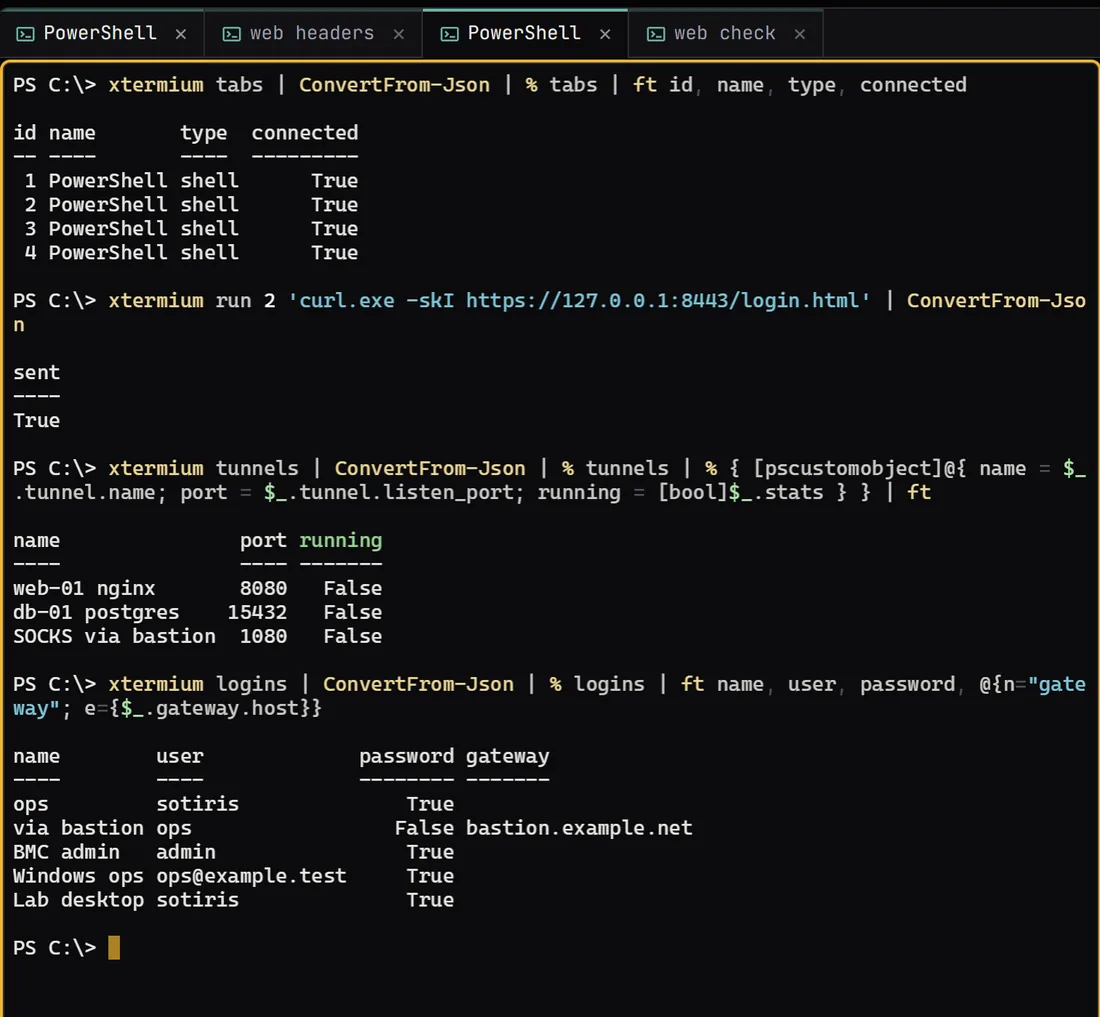
The xtermium command line is a client for the running app: the same tools as the MCP server, from PowerShell, bash or Python, printing JSON. Turn on Settings › MCP first; xtermium help lists every command, and the AI agents guide walks through them.
Questions about agents.
Can Claude Code run commands on my servers through XTermium?
Yes. Add XTermium’s MCP server to Claude Code with the command Settings › MCP shows, or start Claude Code from an AI agent session, which gets the server without setup. It opens your saved sessions by name, runs commands and reads the output. XTermium signs in, so the agent never sees the password.
Which assistants work with it?
Settings › MCP has a ready command for Claude Code, Gemini CLI, Copilot CLI, opencode, Codex and VS Code. Other assistants that take MCP servers over HTTP mostly read the JSON configuration the page copies, with your token in it.
Can an assistant on another machine use it?
Yes: set Listen on to The network, and the server speaks HTTPS with a self-signed certificate whose fingerprint Settings › MCP shows. Codex and VS Code can’t skip the certificate check; for them, forward the port over SSH from that machine instead.
What happens when I step away?
Lock XTermium (Ctrl+Shift+K, or after the minutes you pick). While it’s locked every tool answers that it’s locked, and assistants carry on after you unlock.
Read next.
SSH client
SSH sessions, SFTP, jump hosts and tunnels, in tabs.
Read more about SSH clientRemote desktop
RDP, VNC, BMC consoles, WinRM and serial beside your terminals.
Read more about Remote desktopCredentials
Shared and saved logins, encrypted on disk, kept out of exports.
Read more about CredentialsAlternatives
XTermium next to MobaXterm, Termius, mRemoteNG, Royal TS and PuTTY.
Read more about AlternativesScreens
Every capture of the running app, with demo data.
See the screens about Screens
Get it for Windows, Linux or macOS.
Free and open source. One command fetches the latest build from GitHub, checks its sha256 and installs it; read install.ps1 or install.sh first. Every file and its checksum, Scoop included, are under Downloads, and the .msi, .exe, .zip, .deb, .rpm, AppImage and .dmg are in the latest release on GitHub. The macOS app is not signed by Apple yet: how to open it the first time.
WindowsWindows 10 and 11
irm https://xtermium.com/install.ps1 | iexLinuxx64: .deb, .rpm or AppImage
curl -fsSL https://xtermium.com/install.sh | shmacOSApple silicon and Intel: one universal .dmg
curl -fsSL https://xtermium.com/install.sh | sh