
SSH client and session manager for Windows, Linux and macOS.
XTermium keeps every SSH session in one sidebar and opens them as tabs and split panes, with SFTP and tunnels on the same connection. Free and open source.
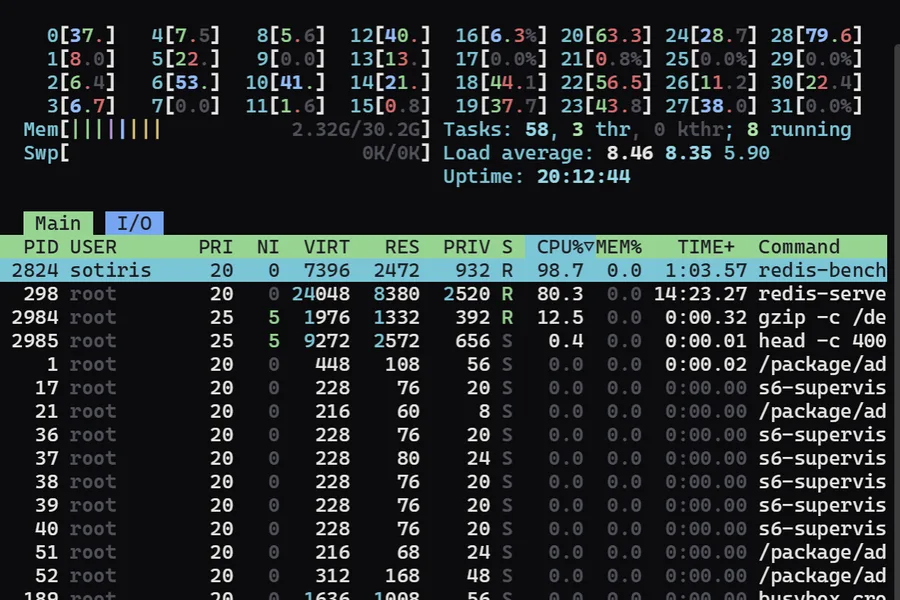
An SSH client with tabs, on Windows, Linux and macOS.
XTermium is a free, open-source SSH client and session manager for Windows 10 and 11, Linux and macOS. Every session you save sits in a folder tree you search by typing, and opens in a tab. Split any tabs into panes, side by side, stacked, 2×2 or tiled, and type into many at once with broadcast. It signs in with your SSH agent (OpenSSH, or Pageant on Windows), key files, passwords or keyboard-interactive, directly or through a jump host. Host keys are trusted on first use, and a changed key refuses the connection instead of asking. A dropped connection comes back by itself. The SFTP file panel and your local, remote and SOCKS5 tunnels use the connection you already have, and the status bar shows the negotiated cipher and a live round trip. A tab can move to its own window and come back when you’re done.
Every way to sign in
Your SSH agent (OpenSSH, or Pageant on Windows), key files with a passphrase prompt, passwords and keyboard-interactive. Agent forwarding is per session, off by default.
Host keys you trust once
A host key is confirmed the first time you connect. A changed key refuses the connection instead of asking.
It comes back by itself
A dropped connection reconnects on its own. After a session ends, press R to reconnect in the same terminal; the earlier output stays above.
What the connection is doing
The status bar shows the connection, how long it’s been up, the negotiated cipher and a live round trip.
Built-in OpenSSH, or an SSH client with tabs?
Windows 10 and 11 include Microsoft’s OpenSSH client, so ssh works in PowerShell with nothing to install. For one server now and then, that is enough. When you juggle many, XTermium keeps what you already have and adds the parts a bare ssh command doesn’t.
- Your keys stay where they are: XTermium signs in through the OpenSSH agent (or Pageant), with your key files, and imports your ~/.ssh/config.
- Sessions are saved in folders you search by typing, and one shared login signs in to many hosts.
- Every session opens in a tab; split tabs into panes and type into many at once.
- The SFTP panel and the tunnels use the connection you already have, and the status bar shows its cipher and round trip.
An SSH session manager: folders, search, one login.
Sessions live in a folder tree. Tag a folder, and search finds every session under it; type a name, press Enter, and you’re on it in the tree. Workspaces keep separate sets of sessions and folders, one dropdown away.
Bring what you have: import a bookmarks .ini file (folders, jump hosts, tunnels, each session’s font, colours and TERM) or your ~/.ssh/config. Stored passwords are not imported.
Shared logins
Keep a user, password and key once and pick it in any session, jump host or tunnel. Change the password once; every session follows.
How logins are kept about Shared loginsBroadcast
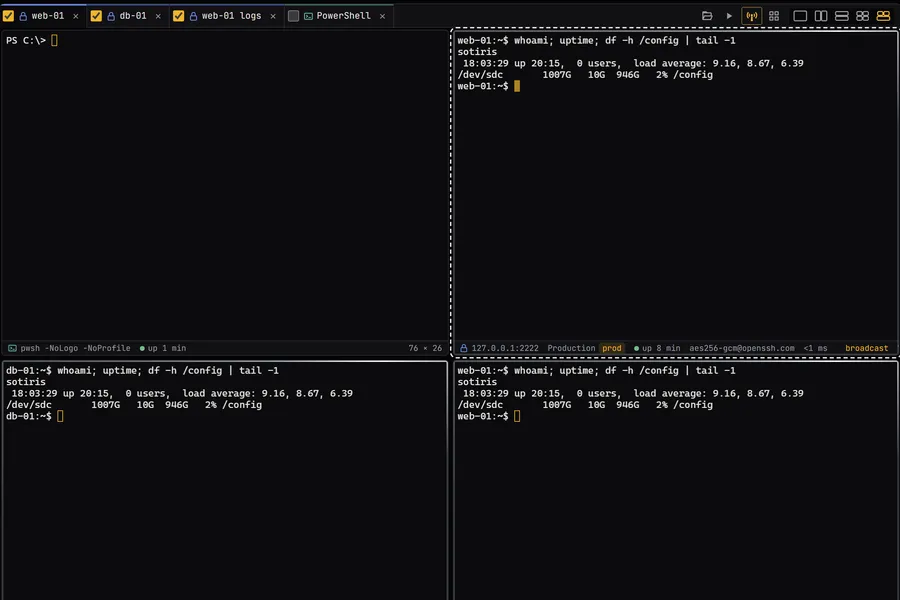
Ctrl+Shift+A types once into every ticked terminal, encoded for each one’s terminal modes.
Snippets
Saved commands with {{name}} placeholders, typed into one tab or every ticked one (Ctrl+Shift+S).
Saved layouts
A whole screen of sessions back in one click, each in its pane and named as it was.
Jump hosts and an SSH gateway.
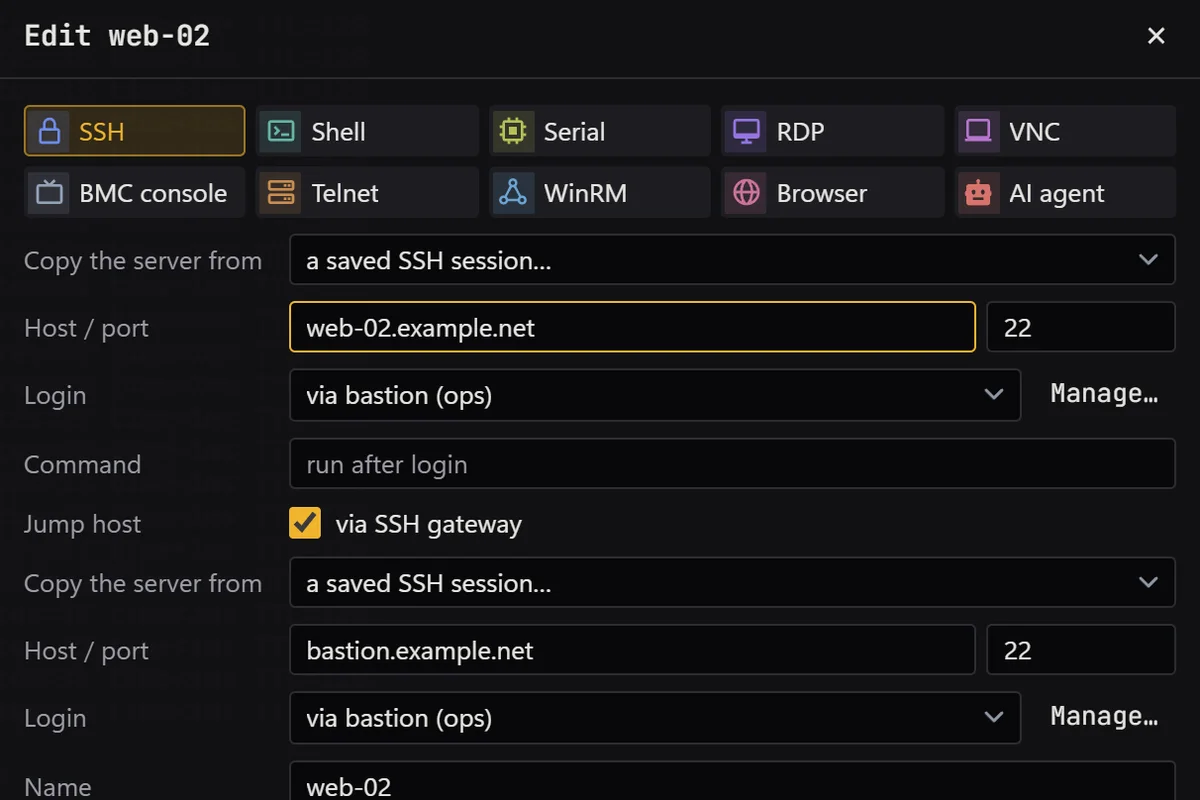
Give a session a jump host and XTermium connects through it. Or put an SSH gateway on a shared login (host, port, user, password or key) and every session that picks the login goes through it.
SSH sessions without a jump host of their own use the gateway as one. RDP and VNC reach their host through a port forwarded over it. Website sessions send every request through it as a SOCKS proxy, internal host names included.
An SFTP client on the same connection.
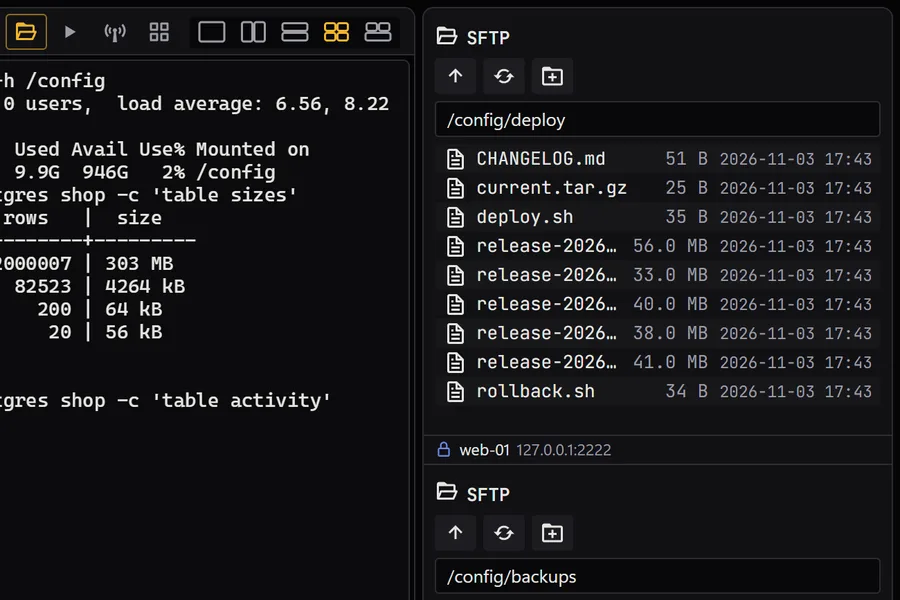
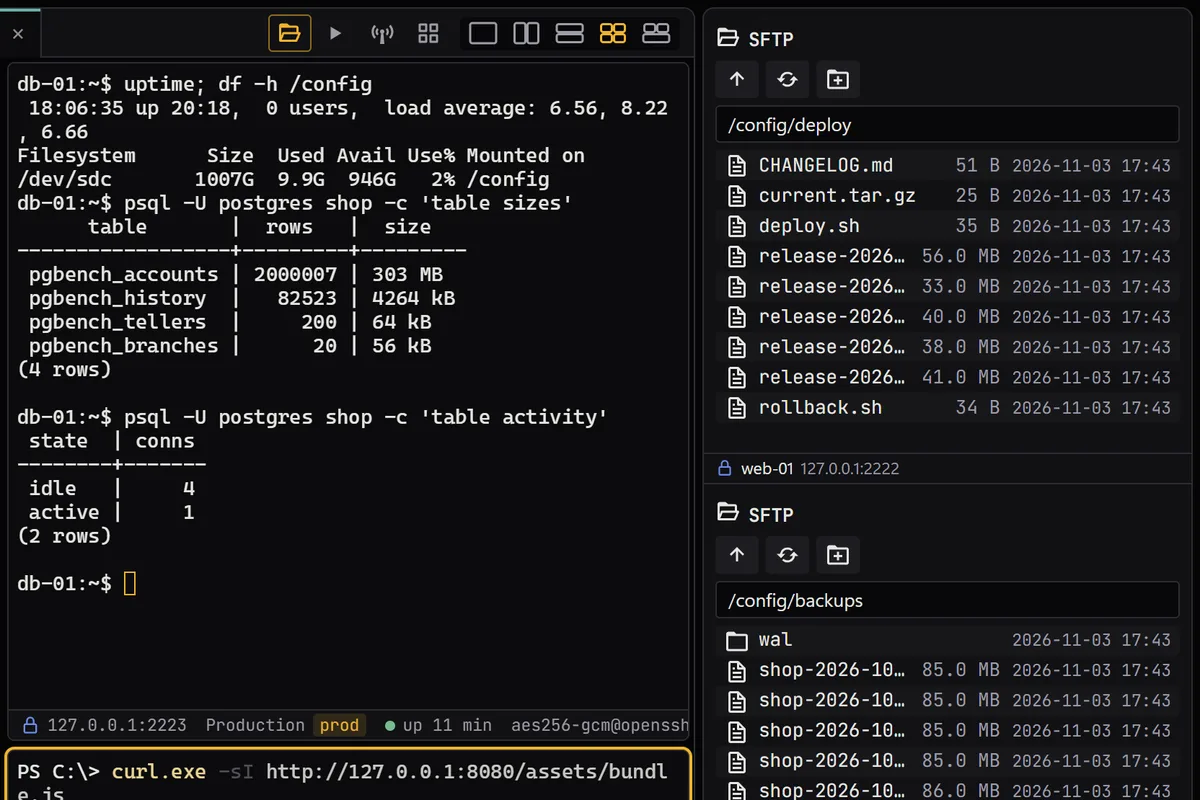
Open the file panel beside an SSH tab and it uses the connection you already have. Browse, download to your Downloads folder, drag files in to upload, rename, delete and make folders, with progress bars. VNC desktops get one too, over an SSH connection of their own to the desktop’s host.
When the shell reports its folder, the panel follows it as you move around. fish does that by itself; for bash, add this line to ~/.bashrc, and for zsh the same in precmd:
PROMPT_COMMAND='printf "\e]7;file://%s%s\e\\" "$HOSTNAME" "$PWD"'
Right-click the tab › Open the folder in VS Code opens the same folder on the SSH host, through VS Code’s Remote-SSH extension.
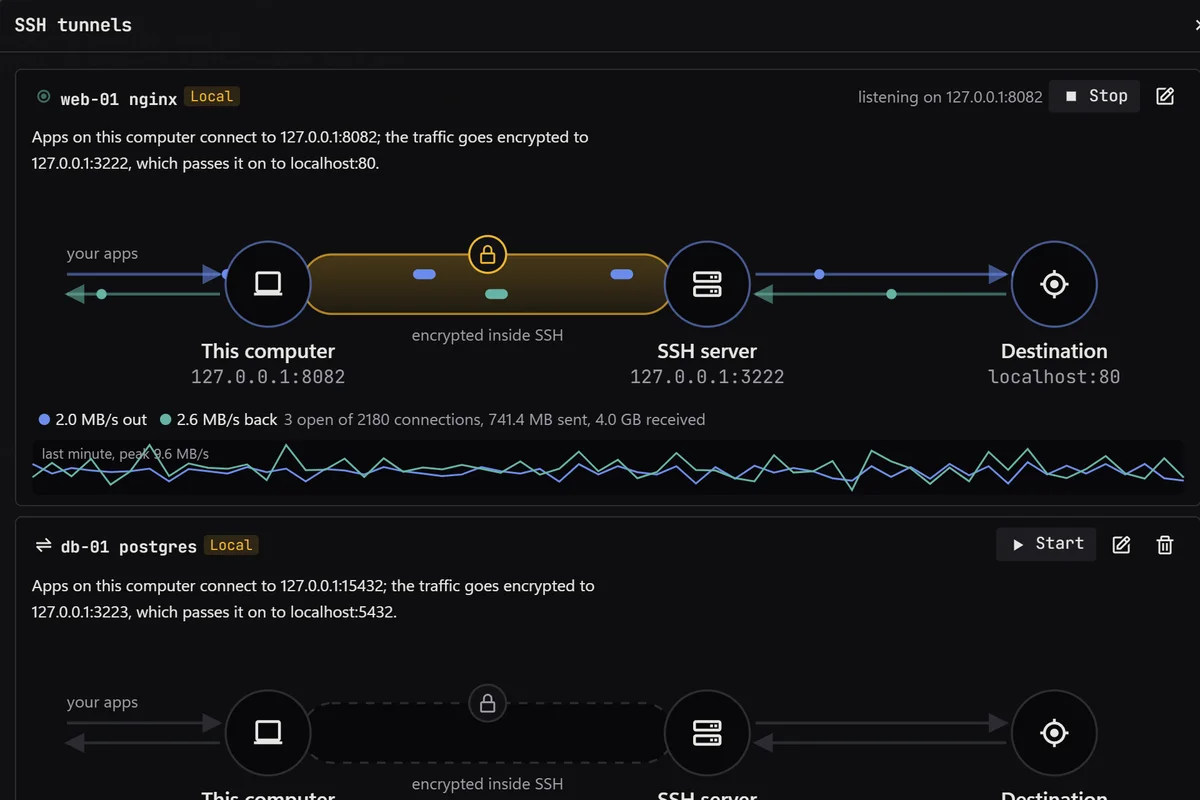
An SSH tunnel manager you can watch.
Local, remote and dynamic (SOCKS5) tunnels, saved by name; you start and stop them, or a script or an agent does. Each one shows its traffic live: throughput each way, active and total connections, bytes, and a 60-second sparkline.
- A tunnel whose connection drops connects again by itself, waiting 1, 2, 4… up to 30 seconds between tries, while its local port stays open.
- Keepalives notice a quiet mobile link within a minute, and a 16 MB window per channel keeps gigabit links full even far away.
- Tunnels can start when XTermium opens, and can go through their login’s SSH gateway.
- New tunnels listen on 127.0.0.1. Imported ones keep the bind address from the file, which is often 0.0.0.0: reachable from your network.
A terminal that keeps up.
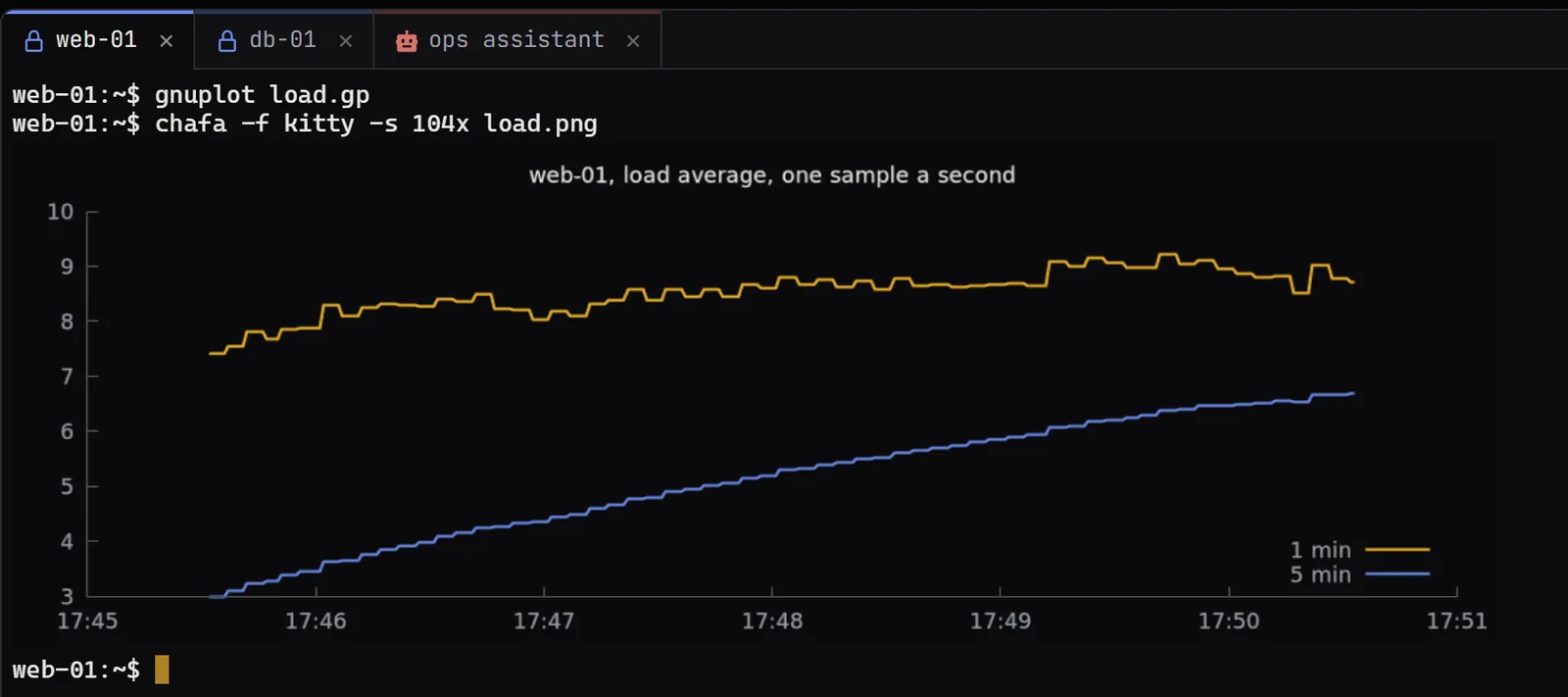
A Rust backend built on WezTerm’s VT engine and a GPU-drawn terminal. Pictures show inline over the kitty graphics protocol, sixel and OSC 1337, so a chart drawn on the server shows over SSH with no X forwarding. Highlight rules colour ERROR, WARN, IP addresses or any pattern you write, which helps when tailing logs. Ctrl+Shift+F finds in the scrollback.
Questions about the SSH client.
Is XTermium a free SSH client?
XTermium is free and open source under the Apache License 2.0: every connection type, on every OS, on any number of machines. Pro, the one paid plan, is the hosted part: end-to-end encrypted sync between your computers, and Terminal Co-op.
Does it run on Windows, Linux and macOS?
Yes, on Windows 10 and 11 (x64): an installer, an .msi for managed deployment, a portable .zip, or Scoop. Linux gets a .deb, an .rpm or an AppImage. macOS gets one universal .dmg for Apple silicon and Intel, not signed by Apple yet.
Can I keep my keys and my ~/.ssh/config?
Yes. XTermium uses your SSH agent (OpenSSH, or Pageant on Windows) and your key files, and imports your ~/.ssh/config. Settings › SSH keys lists the key pairs in ~/.ssh, copies their public keys and makes new ones: Ed25519 by default, ECDSA P-256 or RSA 4096.
Where are my SSH passwords kept?
Encrypted on disk with XChaCha20-Poly1305, under a key in your OS keychain. A password you keep in a shared login is typed once and used by every session that picks it. The credentials page has the details.
Do I need an SSH client on Windows 10 or 11?
Windows 10 and 11 include OpenSSH, which is enough to reach one server from PowerShell. XTermium uses that OpenSSH agent and imports your ~/.ssh/config, then adds what the built-in client doesn’t have: saved sessions in folders, tabs and split panes, an SFTP panel on the same connection, and SSH tunnels with live traffic.
Read next.
Remote desktop
RDP, VNC, BMC consoles, WinRM and serial beside your terminals.
Read more about Remote desktopAI agents
A local MCP server and agent tabs that never see a password.
Read more about AI agentsCredentials
Shared and saved logins, encrypted on disk, kept out of exports.
Read more about CredentialsAlternatives
XTermium next to MobaXterm, Termius, mRemoteNG, Royal TS and PuTTY.
Read more about AlternativesScreens
Every capture of the running app, with demo data.
See the screens about Screens
Get it for Windows, Linux or macOS.
Free and open source. One command fetches the latest build from GitHub, checks its sha256 and installs it; read install.ps1 or install.sh first. Every file and its checksum, Scoop included, are under Downloads, and the .msi, .exe, .zip, .deb, .rpm, AppImage and .dmg are in the latest release on GitHub. The macOS app is not signed by Apple yet: how to open it the first time.
WindowsWindows 10 and 11
irm https://xtermium.com/install.ps1 | iexLinuxx64: .deb, .rpm or AppImage
curl -fsSL https://xtermium.com/install.sh | shmacOSApple silicon and Intel: one universal .dmg
curl -fsSL https://xtermium.com/install.sh | sh